
MOQ & listed pricing
Use product MOQ and published price or price range. The buyer can still request a final quote for their quantity and delivery location.
Give B2B buyers helpful first answers about MOQ, pricing, GST, delivery, samples and your business policies—using information you control. Keep conversations moving while you focus on the deal.

Configured information becomes the starting point for a better conversation. Every reply follows the data available for that seller and product.
Use product MOQ and published price or price range. The buyer can still request a final quote for their quantity and delivery location.
Explain listed delivery scope and GST details where those facts exist. Freight and dispatch timelines remain subject to seller confirmation.
Publish whether samples or customization are available, and add approved payment terms buyers often ask about.
Share your configured chat hours. A listed live product is described as a listing—not guaranteed ready stock.
Help collect buyer context. Final quotation, payment confirmation, order status or tracking may still need a seller response.
Add approved keyword-based answers to common questions, plus manual one-click templates for your sales team.
Important distinction: Smart auto replies use known rules and data. Quick Replies are manually selected by the seller. Fallback acknowledgement is optional. The tool does not independently negotiate or guarantee orders.
These illustrated walkthrough screenshots are reconstructed from the current seller settings interface, using example values—never customer data or an actual account.

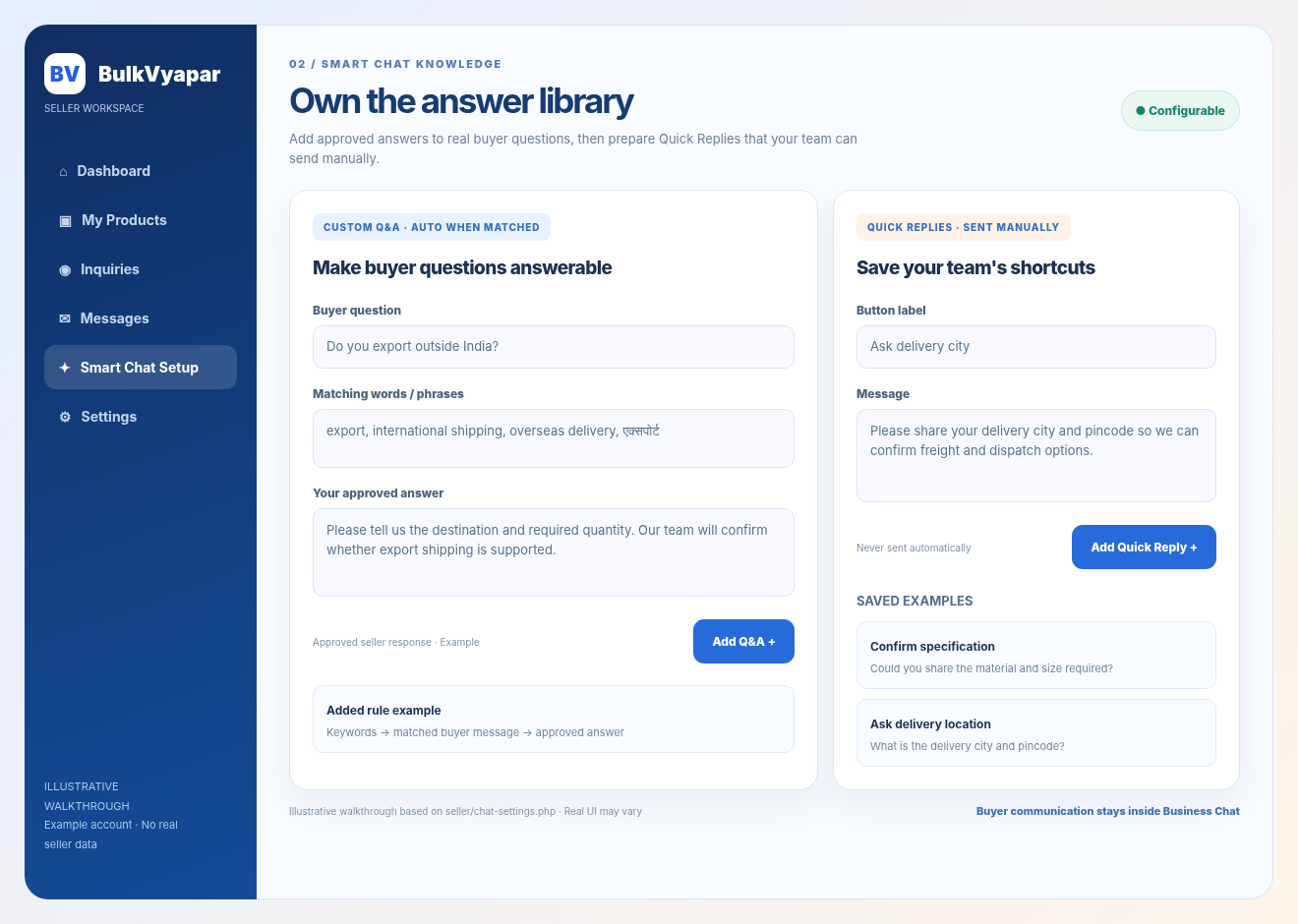
No additional chatbot account is needed. Smart Chat belongs to your existing BulkVyapar seller workspace.
Open Seller Dashboard → Smart Chat Setup. New businesses first create their BulkVyapar company listing.
Choose Smart Auto Replies, greeting and optional fallback acknowledgement. Only selected options are active.
Add greeting, payment terms, sample and customization choices, start/end times and working days; update your product records for reliable MOQ and prices.
Enter buyer question, relevant keyword phrases and an approved answer. Include common Hindi/English phrases when useful.
Save shortcuts for delivery city, quotation requirements or follow-up messages. Your team chooses when to send them.
Save Smart Chat settings. Use Messages to check conversations and manually clarify anything the rules cannot establish.
Change business policies or hours in Smart Chat Setup and press Save Smart Chat Settings. For Custom Q&A or Quick Replies, the current screen supports Add / Delete: remove the outdated entry and add the revised one. Update product MOQ and listed prices through your product editor. Frequent buyer questions are a good reason to review these settings.
A smart reply can only be as current as the product details and policies behind it. Review the information your buyers ask about, especially when your business terms change.
Your samples became available, but the chatbot setting still says “No”.
Seller-approved wording now invites the buyer to ask about charges and delivery.
The seller decides the correct business policy. Changes are saved through the secure settings form.
Designed to reduce repeated first questions—not replace professional judgement or personal buyer relationships.
Common MOQ, timing, sample and payment questions can receive seller-approved answers when configured and matched.
Product listing details and company settings provide consistent context across relevant chat conversations.
Unknown questions, stock confirmation and detailed commercial negotiations can continue with the real seller.
Buyer quantity and delivery context can move into a seller-managed quotation conversation and subsequent invoice workflow.
We want seller communication to become more capable as BulkVyapar develops. The ideas below are future possibilities, not currently delivered features, deadlines or commitments.
Make the most of today's controls ↗More useful language coverage and ways to understand common buyer expressions.
Broader, safely grounded context from real catalogue and seller details.
Improvements to review, organize and maintain approved answers.
More visibility into recurring buyer questions and opportunities to improve configured information.
BulkVyapar’s current chatbot does not use an unrestricted external AI generator. It does not independently verify physical stock, invent shipping commitments, guarantee buyer enquiries or replace the seller's responsibility for final prices, terms and fulfilment. Automation depends on seller settings, matching rules and available data. Repeated auto replies may be spaced out to avoid flooding a buyer conversation.
It is a seller-controlled, rule-based auto-reply capability inside BulkVyapar Business Chat. When enabled, it can respond to supported buyer questions from known business or product data and seller-approved answers. It is not an unrestricted generative AI chatbot.
The current Smart Chat Setup explicitly uses rule-based automation without an external AI API. Responses depend on known product data, configured business details and custom keyword-matched Q&A. Future enhancements, if introduced, will be described separately.
Depending on available data, it supports MOQ, listed price, delivery scope, GST information, listed product availability status, quotation context, payment terms, sample and customization options, business hours, and seller-created custom Q&A. Certain transaction updates request seller confirmation.
Yes. In Seller Dashboard, open Smart Chat Setup to configure the greeting, payment terms, sample and customization options, working days, opening and closing times, automatic replies and the optional fallback acknowledgement. Save the settings to apply them.
Add a buyer question, relevant keywords or phrases, and your approved answer in Smart Chat Setup. The matching logic checks the buyer message against the saved keywords and question; it is not a guarantee of understanding every phrasing. Review keywords and answers whenever details change.
No. Quick Replies are seller-created templates selected manually by the sales team in Business Chat. They are distinct from automatic replies.
The current Smart Chat Setup screen provides add and delete controls for Custom Q&A and Quick Replies rather than inline editing. Remove an outdated item and add a corrected new one. For MOQ or listed price changes, edit your product details in the seller dashboard.
No. A live product listing is not proof of physical stock. The tool does not invent stock, unpublished prices or business policies. Final quotations, freight, dispatch and transactions require seller confirmation as applicable.
Log in as a seller, open Smart Chat Setup from the dashboard, enable your preferred automation controls, update facts and business hours, add approved Q&A and Quick Replies, and save. Then open Messages to respond to real buyers.
BulkVyapar may enhance its seller communication tools over time. Areas under consideration can include better answer coverage, multilingual support and richer product context. These are forward-looking possibilities, not current capabilities or release promises.
Configure accurate business answers, let Smart Chat help with routine questions and stay in control of the conversation.
BulkVyapar Smart ChatAI B2B MARKETPLACEYour sourcing request is saved, but the confirmation email could not be sent right now. Please contact our support team if you need a copy.
Choose one of the six quick actions below.
Official BulkVyapar policies and redressal channels.
Your support request was saved successfully.